
Documentation/Text expander
Guide 07Text expander
Create reusable replies, signatures and templates, then insert them with an abbreviation.
Create your first snippet
- Open Settings → Snippets → Manage Snippets.
- Choose Add.
- Enter an abbreviation that is unlikely to occur naturally, such as
;studio. - Write the content below. Start with plain text so you can easily verify the result.
- Move focus out of the field and check the saved status.
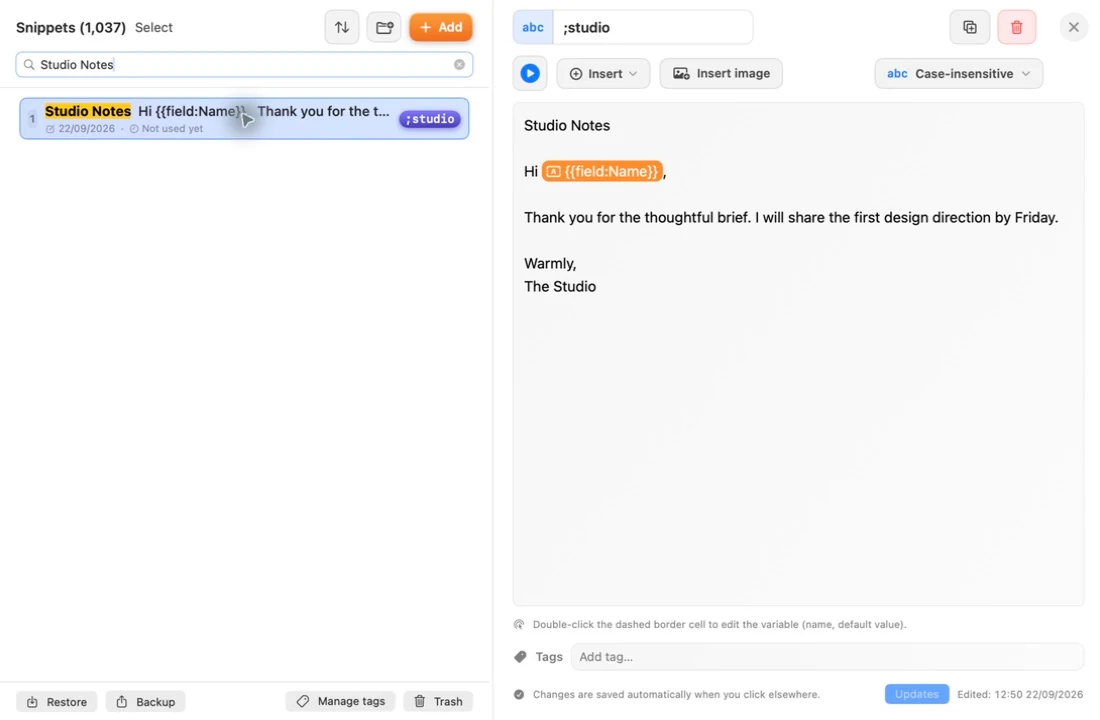
Try it in a document
- Open a blank TextEdit document.
- Make sure Snippets and automatic abbreviation expansion are enabled in Settings.
- Type your abbreviation.
- If your expansion mode uses a trigger key, press the configured trigger.
Expected result: the abbreviation is replaced by your saved content. A template containing fill-in fields asks for those values before insertion.
Pick an expansion mode
In Settings → Snippets → Expansion mode, choose the behaviour that suits your writing:
- Expand when matched: expansion begins when the abbreviation matches.
- Trigger-key mode: expansion waits for the configured trigger.
If one abbreviation is a prefix of another, such as long20 and long200, immediate expansion can match the shorter one before you finish typing. Use a trigger mode or choose distinct abbreviations.
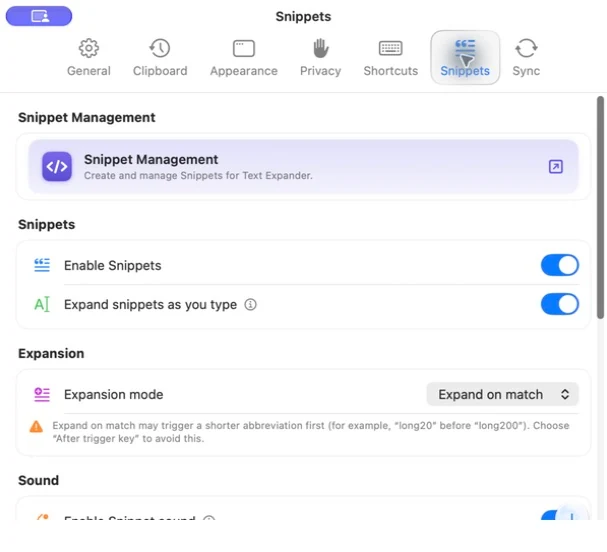
Organise the library
Create folders for related templates. Add tags so a snippet can belong to more than one useful grouping. Search for content, an abbreviation or a #tag. A folder’s enable switch controls automatic expansion for that group.
The popup’s Snippets tab also lets you find and insert content without remembering an abbreviation. Enable that tab in Appearance settings if it is hidden.
Images and formatting
Use the editor’s image insertion controls for inline or attached images. The destination app decides which rich text and image representations it accepts. Test your template in the actual mail, chat or document app before relying on its appearance.
When expansion does not happen
Check Accessibility permission, Snippets switches, folder state, excluded apps, the trigger mode and case-matching rules. Secure input fields and some custom editors can block expansion. Use the popup or manual copy/paste as an alternative.
Continue with Dynamic snippets for names, choices, dates and conditions.