
Documentation/Dynamic snippets
Guide 08Dynamic snippets
Personalise one template with fields, dates, choices and carefully controlled actions.
Start with a fill-in field
Open a snippet and use Insert to add a field. Choose a single-line value for a name, a multi-line value for a message, a dropdown for one choice, or a multi-select field for several choices. A selectable date lets you choose a specific date at insertion time.
A simple template looks like this:
Hi {{field:Name}},

Thank you for the brief. I will share the first direction by Friday.

Warmly,
The Studio
When you use the snippet, enter the requested Name and confirm insertion. The supplied value replaces the field in the final text.
Try the built-in examples
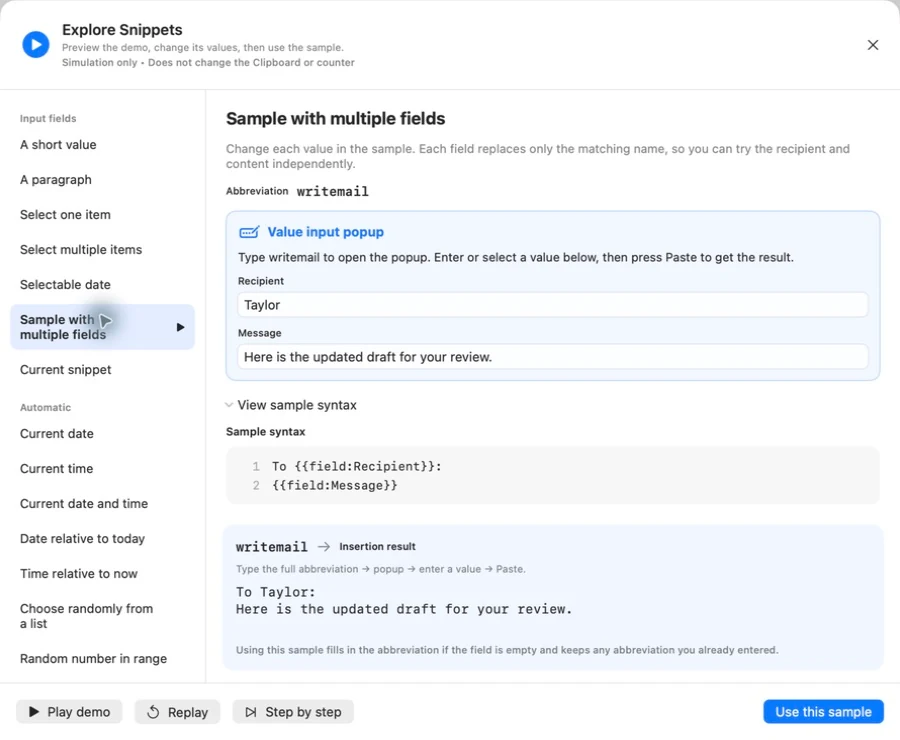
The play/demo button in the snippet editor opens Explore Snippets. Pick an example, change its values and use Replay or Step by step. The demo explains the syntax and shows the result.
The demo is a simulation: it does not change your clipboard or real counters. Choose Use this template only when you want to apply an example to your draft, then review the draft before leaving the editor.
Useful tokens
| Token | Purpose |
|---|---|
{{field:Name}} | A named fill-in value |
{{date:dd/MM/yyyy}} | Current date at expansion |
{{time:HH:mm}} | Current time at expansion |
{{clipboard}} | Current clipboard text |
{{cursor}} | Position the insertion point for continued typing |
{{calculated-date:2d|dd/MM/yyyy|en_US}} | Date two days after expansion |
{{calculated-time:1h30m|HH:mm}} | Time one hour and thirty minutes later |
Prefer the Insert menu when adding or configuring fields. Dropdown options, defaults, random values and counters have field settings beyond the visible token.
Conditions and choices
The built-in examples cover equality, alternative branches, nested conditions, contains, starts-with, ends-with, lists, AND, OR and grouped expressions. Begin with one simple condition and inspect both outcomes before combining rules.
Use the in-app example syntax as the reference for the exact condition you need. A field’s displayed label and stored option value can affect a condition differently.
Simulated keys need care
{{key:tab}} can move to another field; {{key:enter}} can submit a form or send a message in some apps. Test these in a harmless document first. Keep automatic send actions out of a template unless you deliberately want that result.
Clipboard tokens can insert whatever is currently copied. Check the clipboard and preview the completed text before using such a template in a sensitive conversation.
Troubleshooting a template
Check balanced braces, exact field names, configured defaults and abbreviation collisions. Reduce a complex template to one field and one sentence, verify it, then add the remaining pieces back one at a time.