
Documentation/Keyboard shortcuts
Guide 10Keyboard shortcuts
Learn the defaults, then use the combinations saved on your own Mac.
Your saved shortcuts are the authority
Open Settings → Shortcuts to see the current bindings. Upgrades and your own customisations can preserve different combinations from a fresh installation. The screenshots on this website show a customised installation.
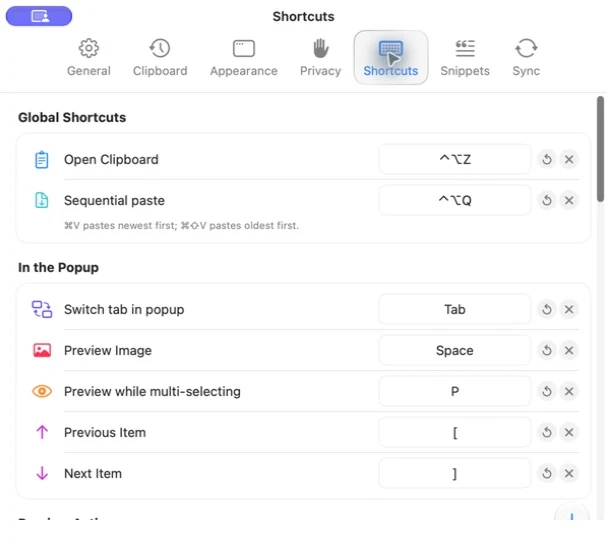
Core defaults
| Action | Fresh-install default or setting |
|---|---|
| Open Clipboard | Control + Option + Z |
| Start sequential paste | Control + Option + Q |
| Change popup tab | Tab |
| Preview an image | Space |
| Paste selected item | Return |
| Move selection | Arrow keys |
| Close the popup | Escape |
| Quick paste by number | Configurable in Clipboard settings: off, Command + 1–9, or 1–9 |
Preview action keys
The app has a mode that changes whether typing goes to Search or to preview actions. Check Settings → Shortcuts → Preview actions and its mode-switch shortcut before using single-letter keys.
Common configurable actions include OCR, Copy, Translate, Save to file, Bookmark, Pin, Rename, Find, segment paste, rich/plain-text display and preview font size.
A single letter is not a universal system shortcut. Its meaning depends on focus, the current mode and the selected item.
Change a shortcut
- Open its row in Shortcuts settings.
- Record the combination you want.
- Review any conflict message.
- Test from another app.
- Use the reset control beside that shortcut if you want its default again.
Choose a combination that does not conflict with Spotlight, input-source switching or another utility. Some keys are reserved or handled differently by macOS.
If a shortcut does not respond
Try the menu bar command first. Check the stored binding, Accessibility where required, other apps using the same keys, and whether a secure field is active. Restarting the installed app can help after macOS permission changes; avoid launching several different copies of Pocket Paste.