
Documentation/Clipboard history
Guide 03Clipboard history
Capture useful content, find it later, and paste into the place you are working.
What history contains
Pocket Paste can capture text, rich text, links, images, screenshots and file references placed on the macOS clipboard. Capture depends on the source app, clipboard representations and your privacy settings. Excluded apps and protected input may prevent capture.
History is stored locally by default. Optional iCloud Sync is a separate feature.
Find and paste an earlier item
- Copy content in another app as usual.
- Place the insertion point in the destination.
- Open Pocket Paste using the menu bar or your configured shortcut.
- Type a memorable part of the text or use a content filter.
- Select the result and press Return. You can also use the popup’s item action.
Expected result: the selected item is inserted into the previously active app. Rich text and file handling depend on what that destination accepts.
Choose how to reuse an item
| Action | When to use it |
|---|---|
| Paste | Insert into the active destination field |
| Copy | Put the item on the system clipboard, then paste manually |
| Preview | Inspect the full text, image or file before deciding |
| Drag | Move supported content into an app that accepts that drag type |
| Pin or bookmark | Keep something easy to reach in your collection |
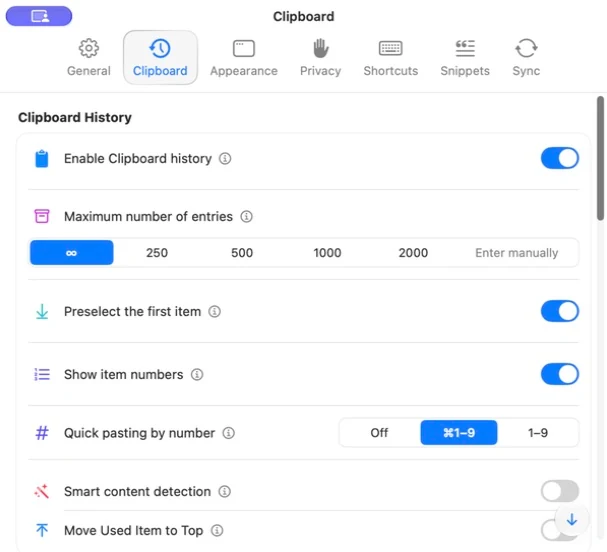
Number shortcuts are configurable in Settings → Clipboard → Quick paste by number. The available choices include off, Command + 1–9, and 1–9. Do not assume they are enabled on every installation.
Control history retention
In Settings → Clipboard, the current app offers unlimited, 250, 500, 1,000, 2,000, and a custom item limit. Review automatic removal of old items separately.
Changing retention is a data-management decision. Review pinned or important items and your backup before reducing a limit or clearing history. A bookmark is for organisation; it should not be your only recovery plan.
Images and file references
Image data, screenshot backups and file references have different lifetimes. A file reference can stop working if the original file is moved or removed. Open its preview before relying on it later. Review screenshot storage and optimisation settings if disk usage grows.
Recover a removed item
Open Settings → Clipboard → Clipboard History Trash and inspect the items still available there. Recover the specific item you need. Retention expiry and permanent deletion can make recovery unavailable; a separate backup gives you another recovery option.
For more precise retrieval, continue with Search and filters.